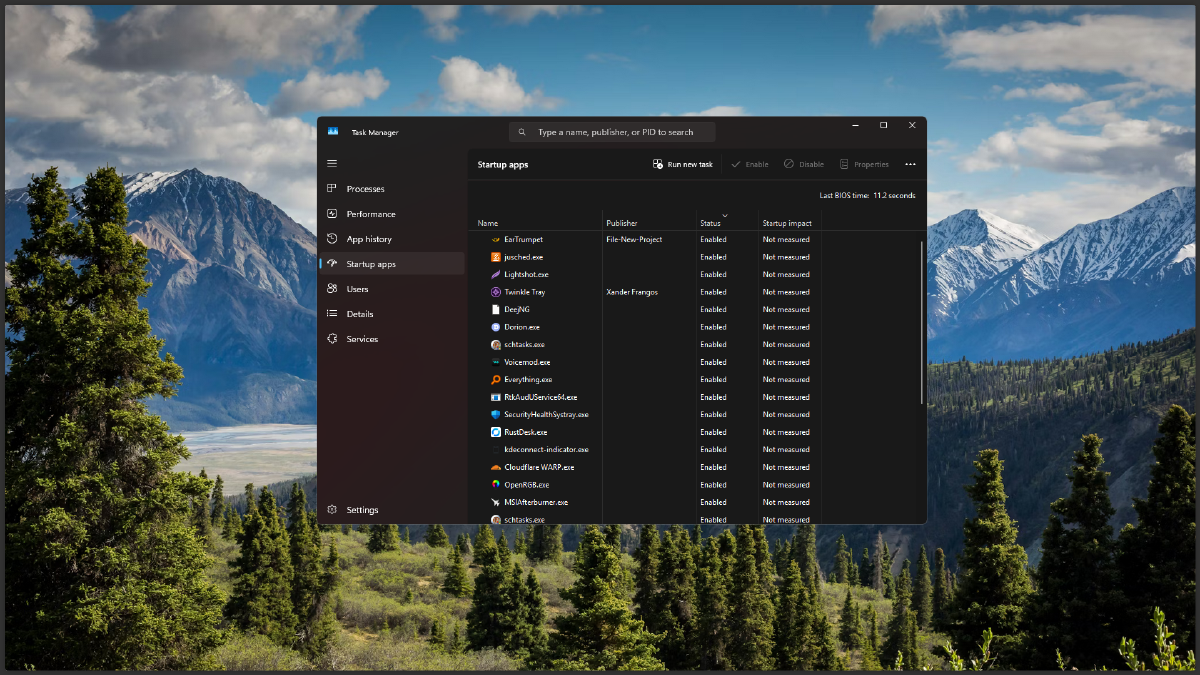


Windows does provide a startup app feature, but unfortunately, there is no built-in way to set the priority or order of applications during booting. This is a common issue when vital applications, such as Elgato Wave Link, end up running last, while other less important apps are already active.
This problem is even more noticeable if the application you need is a UWP Desktop Bridge. These types of apps often bypass the traditional Windows startup sequence, making them difficult to control using only Task Manager or the Startup folder.
In this article, we will discuss how to prioritize apps at startup in Windows step-by-step. The focus is on how to sequence startup apps in Windows using the two most stable approaches: Task Scheduler and NSSM (Non-Sucking Service Manager).
Preparation and Prerequisites #
Before diving into the technical steps, make sure you have prepared the following:
- Windows 10 or Windows 11
- Administrator privileges
- The executable path of the application you want to prioritize (e.g., Elgato Wave Link)
- Task Scheduler (already available in Windows)
- NSSM (Non-Sucking Service Manager) – optional
- Basic understanding of the Windows startup process
Step-by-Step Guide to Setting App Startup Priority in Windows #
Option 1: Using Task Scheduler (Recommended) #
This approach is the safest and most stable, especially for UWP Desktop Bridge applications.
Step 1 – Disable Default App Startup #
- Open Task Manager (
Ctrl + Shift + Esc) - Go to the Startup tab
- Disable the application you want to reorder (e.g., Elgato Wave Link)
Why is this necessary? If the application is still active in the default Windows startup, it might run simultaneously and ignore the priority we set later.
Step 2 – Open Task Scheduler #
- Press
Win + R, type:
taskschd.msc- Click OK
Step 3 – Create a New Task with High Priority #
- Click Create Task (not Basic Task)
- General Tab:
- Name: Startup - Elgato Wave Link
- Check Run with highest privileges
- Configure for: Windows 10 / Windows 11
Step 4 – Set Trigger with Delay #
- Triggers Tab
- Click New
- Select:
- Begin the task: At startup
- Check Delay task for
- Choose 30 seconds (or as needed)
Why use a delay? A delay ensures that core Windows services and the audio stack are ready, so vital applications do not fail to initialize.
Step 5 – Define the App Action #
- Actions Tab
- Click New
- Select Start a program
- Fill in:
- Program/script:
"C:\Program Files\Path\To\App.exe"If it is a UWP Desktop Bridge app, such as Elgato Wave Link:
- Actions Tab
- Click New
- Select Start a program
- Fill in:
- Program/script:
"explorer.exe"- Add arguments (optional):
shell:AppsFolder\Elgato.WaveLink_g54w8ztgkx496!AppWhy do UWP Desktop Bridge Apps use explorer.exe and additional arguments? Because in my experience, using the absolute .exe path often fails to run. To find the App ID, check the app’s Shortcut Properties under the target section.
Step 6 – Save and Test #
- Click OK
- Restart Windows
- Observe the sequence of the running applications
Option 2: Using NSSM for Advanced Control #
If you want control similar to a Windows service, NSSM is the advanced solution.
Step 1 – Install NSSM #
- Download NSSM
- Extract it and open Command Prompt as Administrator
- Run:
nssm install ElgatoWaveLinkStep 2 – Service Configuration #
Fill in the configuration:
- Path:
C:\Program Files\Elgato\WaveLink\WaveLink.exe- Startup type: Automatic (Delayed Start)
Step 3 – Start the Service #
nssm start ElgatoWaveLinkWhy is NSSM effective? Because Windows prioritizes services over user startup apps.
Recommended Startup Flow #
flowchart TD
    A[Windows Boot] --> B[Core Services]
    B --> C[Delayed Services]
    C --> D[Task Scheduler Startup]
    D --> E[Standard Startup Apps]
Why Use Task Scheduler or NSSM #
Task Scheduler operates at a deeper system level than standard startup. It can run applications after specific events, such as startup completion or a specific delay, making it more predictable.
For UWP Desktop Bridge based apps, Windows often runs them through the AppX infrastructure. This is why the startup order cannot be managed conventionally.
Meanwhile, NSSM turns a regular application into a service. Architecturally, Windows services are run earlier and more stably, especially for audio, streaming, or monitoring applications.
Conclusion #
The issue of not being able to set the startup order of applications in Windows is real, especially for critical apps like Elgato Wave Link. However, with Task Scheduler or NSSM, you can effectively and consistently implement ways to prioritize apps at startup in Windows.
If the application:
- Often runs too late → use Task Scheduler + Delay
- Must always be ready at the start → use NSSM
Quick Troubleshooting:
- App not running? → check the
.exepath - Audio not detected? → add a longer delay
- UWP app failed? → ensure default startup is disabled and the App ID is correct
Now it’s your turn to try. If you’re still confused or want to discuss other app case studies, write in the comments section, and let’s figure it out together!