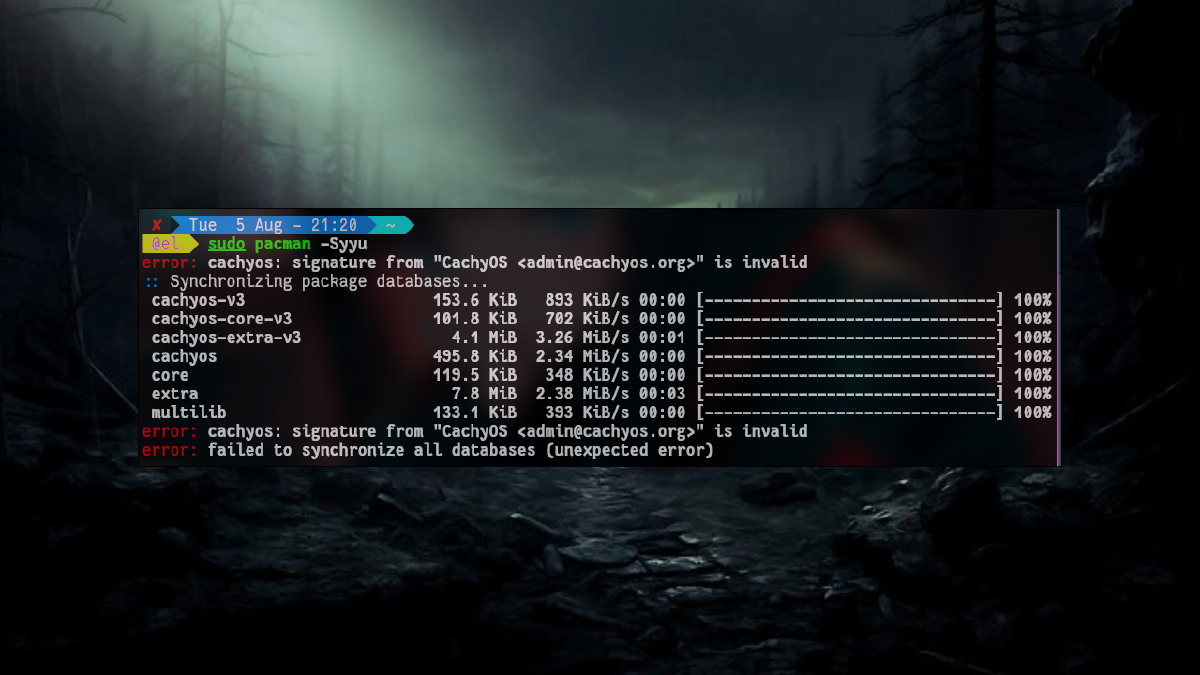


Ran sudo pacman -Syu and got slapped with this?
error: cachyos: signature from "CachyOS [email protected]" is invalid
error: failed to update cachyos (invalid or corrupted database (PGP signature))
error: database 'cachyos' is not valid (cannot open database)
Your system is not broken. This is a GPG keyring mismatch — usually triggered by a key expiry or a corrupted sync. Five commands and you are back to updating normally.
Quick answer: Delete the old gnupg dir → re-init pacman-key → populate → fetch the CachyOS key → lsign it. Full commands below.
What causes this error? #
Every package in pacman is cryptographically signed. When the CachyOS development team rotates or updates their signing key — or when a partial sync corrupts your local keyring — pacman refuses to trust the database and blocks all updates.
Common triggers:
- System was not updated for a long time (key expired locally)
- Interrupted
pacman -Syuthat left the keyring in a broken state - System clock out of sync (GPG validation is time-sensitive)
- Fresh install where the keyring was never fully populated
None of these require a reinstall. A full keyring reset takes under two minutes.
Fix: Reset the pacman keyring (5 steps) #
Run these commands in order. Each one builds on the previous.
Step 1 — Delete the broken keyring #
sudo rm -rf /etc/pacman.d/gnupg/This wipes the corrupted GPG database entirely. The directory will be rebuilt from scratch in the next step.
Step 2 — Re-initialize pacman-key #
sudo pacman-key --initThis creates a new, empty GPG environment for pacman to work with. It generates the entropy needed for cryptographic operations — it may take a few seconds on low-entropy systems.
Step 3 — Populate official keys #
sudo pacman-key --populateThis imports the trusted public keys from both archlinux-keyring and cachyos-keyring into your freshly initialized keyring.
Step 4 — Fetch the CachyOS signing key manually #
sudo pacman-key --recv-keys F3B607488DB35A47 --keyserver keyserver.ubuntu.comKey ID F3B607488DB35A47 is the CachyOS admin’s signing key. Fetching from keyserver.ubuntu.com is more reliable than the default SKS servers, which are often overloaded.
Step 5 — Locally sign (trust) the key #
sudo pacman-key --lsign-key F3B607488DB35A47lsign tells pacman: “I trust this key to verify packages.” Without this step, the key is imported but not marked as trusted — updates will still fail.
Verify the fix #
Now run a full system update:
sudo pacman -SyuYou should see synchronizing package databases complete without errors.
Still failing? Check these #
System clock is wrong. GPG signatures are time-sensitive. If your RTC is off, even a valid key will appear expired or not-yet-valid.
timedatectl statusIf NTP synchronized: no, fix it first:
sudo timedatectl set-ntp trueThen redo the fix steps from Step 1.
--populate completed but you still get the error. Sometimes the keyring packages themselves are outdated. Force-reinstall them:
sudo pacman -S --noconfirm archlinux-keyring cachyos-keyringThen redo Steps 1–5.
Error on Step 4 (cannot connect to keyserver). Try an alternative keyserver:
sudo pacman-key --recv-keys F3B607488DB35A47 --keyserver keys.openpgp.orgWhy lsign and not just --populate?
#
--populate imports keys from keyring packages already installed on your system. But if the CachyOS keyring package is itself outdated or was never fully installed, --populate alone won’t add the admin key. The manual --recv-keys + --lsign-key combination bypasses that dependency entirely and directly establishes trust with the key server.
Does this apply to other Arch-based distros? #
Yes — the same root cause and the same fix applies anywhere pacman is the package manager: Arch Linux, EndeavourOS, Manjaro, and other CachyOS derivatives. The only difference is the key ID to fetch. For stock Arch Linux without the CachyOS repo, you can skip Steps 4–5 and just run --populate with archlinux-keyring.
Summary #
| Step | Command | Purpose |
|---|---|---|
| 1 | sudo rm -rf /etc/pacman.d/gnupg/ |
Wipe broken keyring |
| 2 | sudo pacman-key --init |
Create fresh GPG environment |
| 3 | sudo pacman-key --populate |
Import official keys |
| 4 | sudo pacman-key --recv-keys F3B607488DB35A47 --keyserver keyserver.ubuntu.com |
Fetch CachyOS key |
| 5 | sudo pacman-key --lsign-key F3B607488DB35A47 |
Trust the key locally |
If this fixed your issue, consider sharing the article with your Linux community — it saves the next person a lot of head-scratching.
Frequently Asked Questions #
Is it safe to delete /etc/pacman.d/gnupg/?
Yes. This directory only contains key metadata, not your installed packages or personal data. pacman-key --init rebuilds it automatically.
Will this delete my installed packages? No. Removing the gnupg directory only affects key verification. Your installed software is untouched.
How do I prevent this from happening again?
Keep your system updated regularly with sudo pacman -Syu. Keys expire on a schedule — systems that go months without updates are most likely to hit this error.
Does this work on Manjaro?
The keyring reset steps (1–3) work on any pacman-based distro. Steps 4–5 are CachyOS-specific. Manjaro has its own keyring: substitute cachyos-keyring with manjaro-keyring and fetch the appropriate key ID.